
Sell Every Place. Scan Every Ticket.
Sell and reserve tickets for anything your venue puts on: grottos, dinners, tastings, quiz nights, tours and classes. Guests book from their phone and get QR tickets, you take payment in full, by deposit or in instalments, and you scan every ticket at the door.


Tickets for Anything You Put On
From the Booking Page to the Door
Ticketing is an optional module, switched on in Upgrades, with its settings under Settings, then Ticketing. It runs from a mobile-friendly booking page, uses QR tickets, and takes the payment plan that suits each event.
a set time or time slots, free or paid, with a family ticket if you want one.
in full, deposit and balance, instalments, or reserve now and pay later, with reminders sent for you.
one for each person, on the booking page, as PDFs and in the confirmation email.
VALID or ALREADY USED at a glance, and the balance taken on arrival if one is owed.
How It Works
Set It Up. Sell It. Scan It.
Four steps from the idea to a full room.
Set up the event
Choose a set time or time slots, add ticket types and prices, pick how guests can pay, then share the booking link and QR code.
Guests book on their phone
Three simple steps with live availability, so a sold-out time cannot be opened and places are held while a guest pays.
They get QR tickets
One QR ticket per person on the booking page, as PDF tickets, and in an email with the PDF attached.
You scan at the door
Scan with a phone, a tablet or a handheld scanner. Used tickets are caught, and a balance can be taken on the spot.
Setting Up an Event
One Editor, Every Detail
The venue, guests and events in these screenshots are made up for the demo, and the header picture is a drawing.
A set time
One date and start time for everyone, with one capacity. For example a dinner or a quiz night.
Time slots
Guests pick a slot and each slot has its own capacity. For example Santa's grotto, tours and tastings.
Slots made for you
Enter a date range, the first and last start, how often, the length and the capacity, and the slots are built. Any slot can be changed afterwards.
The event editor
Set the title, header picture, event colour and status in one place. The picture and colour show on the booking page, in the emails and on the PDF tickets.
- Status: Draft (guests cannot see it), Live, booking closed, or cancelled
- Free events say Reserve now instead of asking for payment
- An optional family ticket, for example 2 adults and 2 children for £50.00, applied automatically in the basket

Time slots and the quick slot maker
Build a whole run of slots in one go, then adjust any single slot.

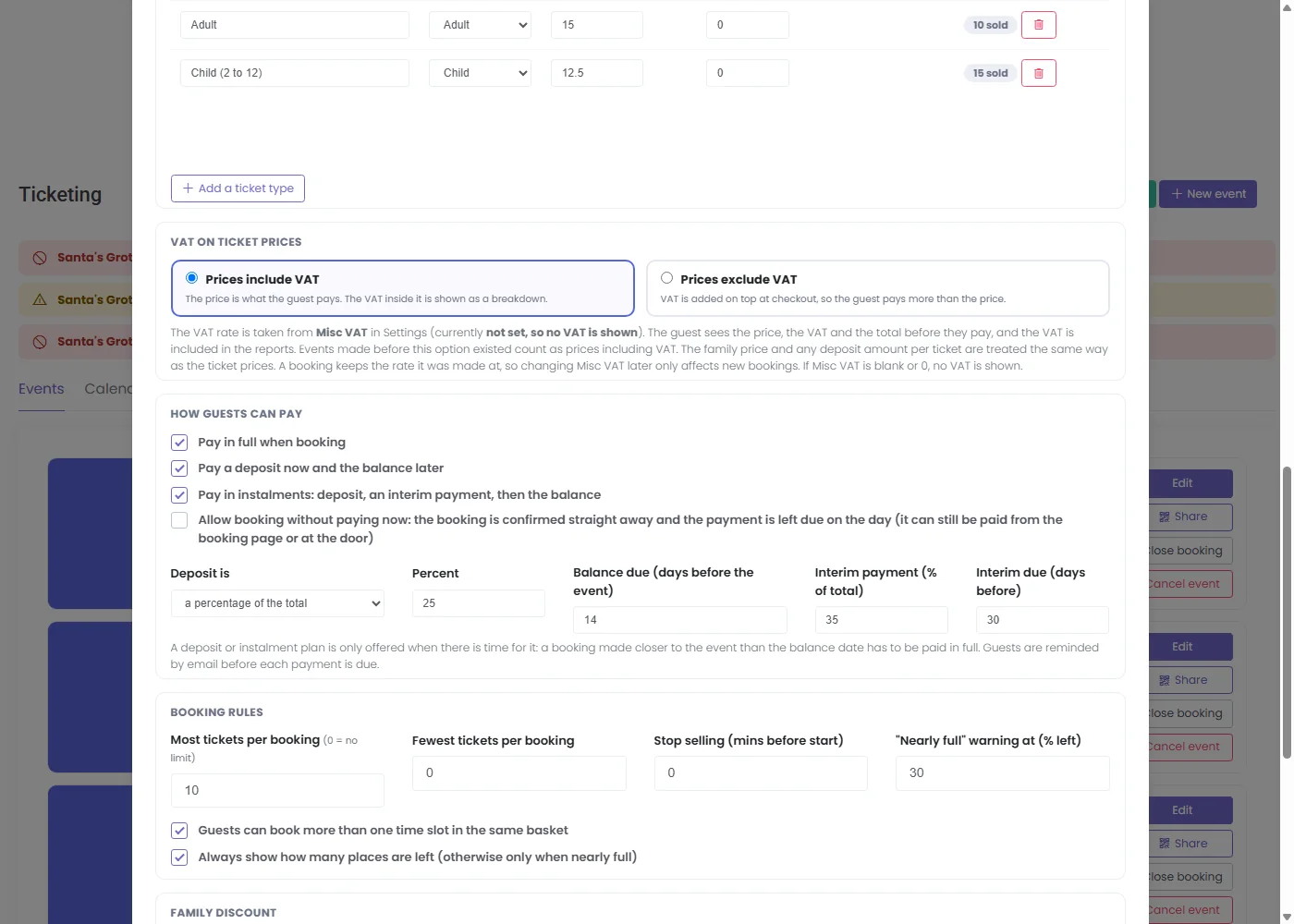
Prices, VAT, payments and rules
Ticket types such as Adult or Child (2 to 12) each have their own price, with an optional limit per booking.
- VAT: prices include VAT or have VAT added on top, chosen for each event. The guest sees the VAT breakdown before paying and the VAT is in the reports
- Most and fewest tickets per booking
- Stop selling a set number of minutes before the start
- A nearly full warning level, and an option to always show places left
- Allow several time slots in one basket
A booking link and QR code for every event
On saving, the event's booking link and a QR code appear, ready to download for posters, menus, table talkers, your website and social media. Guests book on their phone.
- Download the QR code
- Copy the booking link, or open it to see the page your guests will see
- Share any event again at any time from the Events page
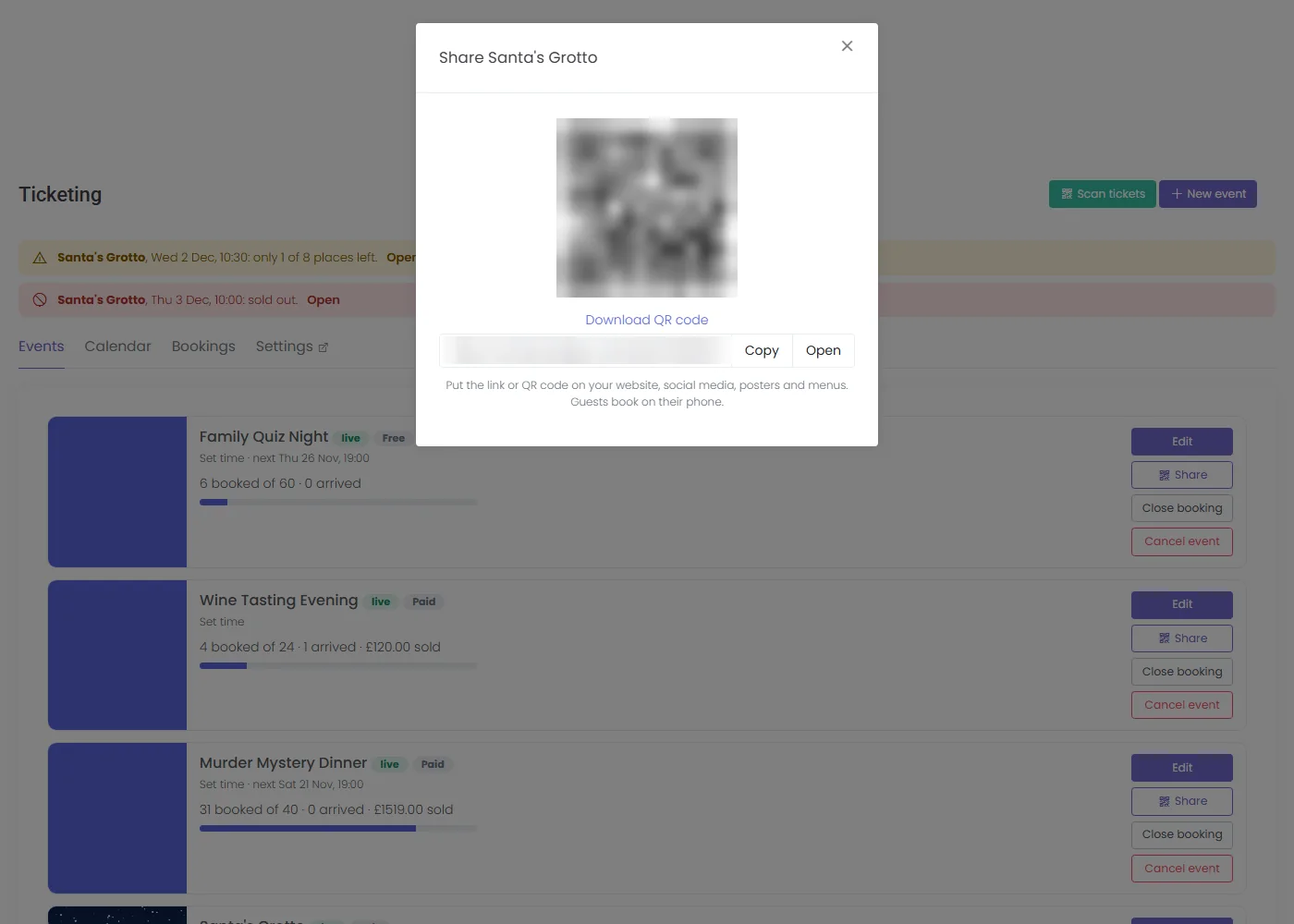
The QR code and booking link in this picture are blurred.
Your branding
Your header picture and event colour appear on the booking page, in the emails and on the PDF tickets.
Your own wording
Add a contact line, an extra paragraph in the confirmation email, booking terms guests must accept, and a note printed on each PDF ticket.
How Guests Can Pay
Take the Deposit. Let the System Chase the Balance.
Every option is chosen for each event.
Pay in full
The guest pays everything when they book.
Deposit now, balance later
The deposit is a percentage or a fixed amount, and the balance is due a set number of days before the event.
Instalments
A deposit, an interim payment, then the balance, each with its own due date.
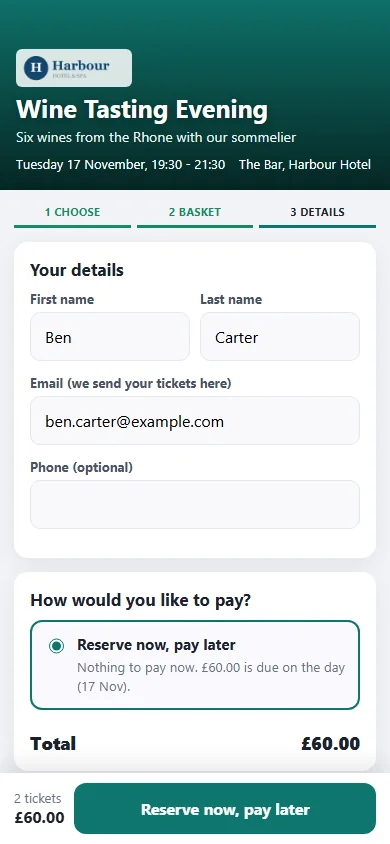
Reserve now, pay later
The booking is confirmed straight away and the amount is due on the day. It can be paid from the booking page or at the door.
Automatic reminders
Guests are emailed before each payment is due, and weekly while it is overdue. Overdue bookings can optionally be cancelled after a set number of days.
Places held while paying
A guest's places are held while they pay, 15 minutes by default, so a slot cannot be sold twice.
Plans only appear when there is time for them. A booking made after the balance date has to be paid in full. Online payments go through the venue's own provider, the same account it already uses for mobile ordering: Trust Payments, Musqet, Windcave or DNA Payments.
The Guest's Booking Page
Phone First, Three Simple Steps
Choose, Basket, Details. No account, no app to download.


Live availability
Selling fast, Only 1 left and Sold out show on each time, with the number of places left. A sold-out time cannot be opened.
The basket stays on the phone
If a guest leaves and comes back, their basket is still there.
Terms and a contact line
Optionally ask guests to accept your terms, and show a contact line for questions.



QR Tickets
One Ticket for Every Person, Wherever They Look
On the page, as a PDF and in an email
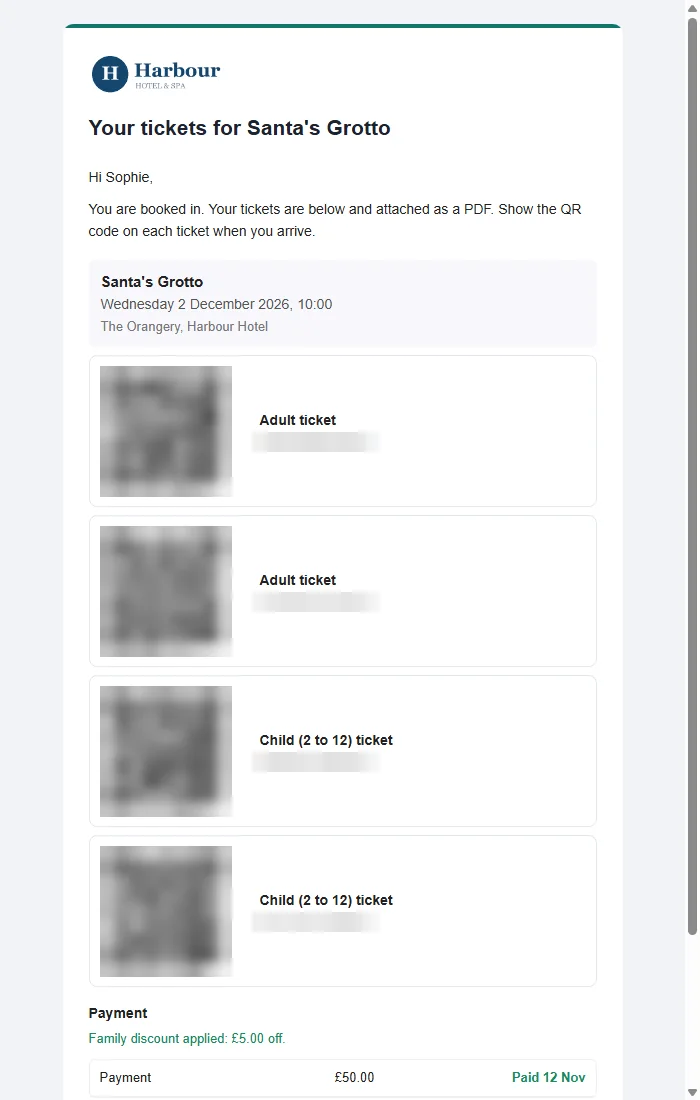
After booking, the guest gets a booking page with one QR ticket per person, PDF tickets, and an email with the QR codes and the PDF attached.
- Each QR ticket works once, for one person
- The ticket page says VALID, or ALREADY CHECKED IN once it has been used
- Your header picture and event colour appear on the page, the email and the PDF
At the Door
Scan. See. Let Them In.
Scan with the camera on a phone or tablet, or with a handheld barcode scanner. Door staff can scan and check people in without seeing guests' contact details. Managers see everything.
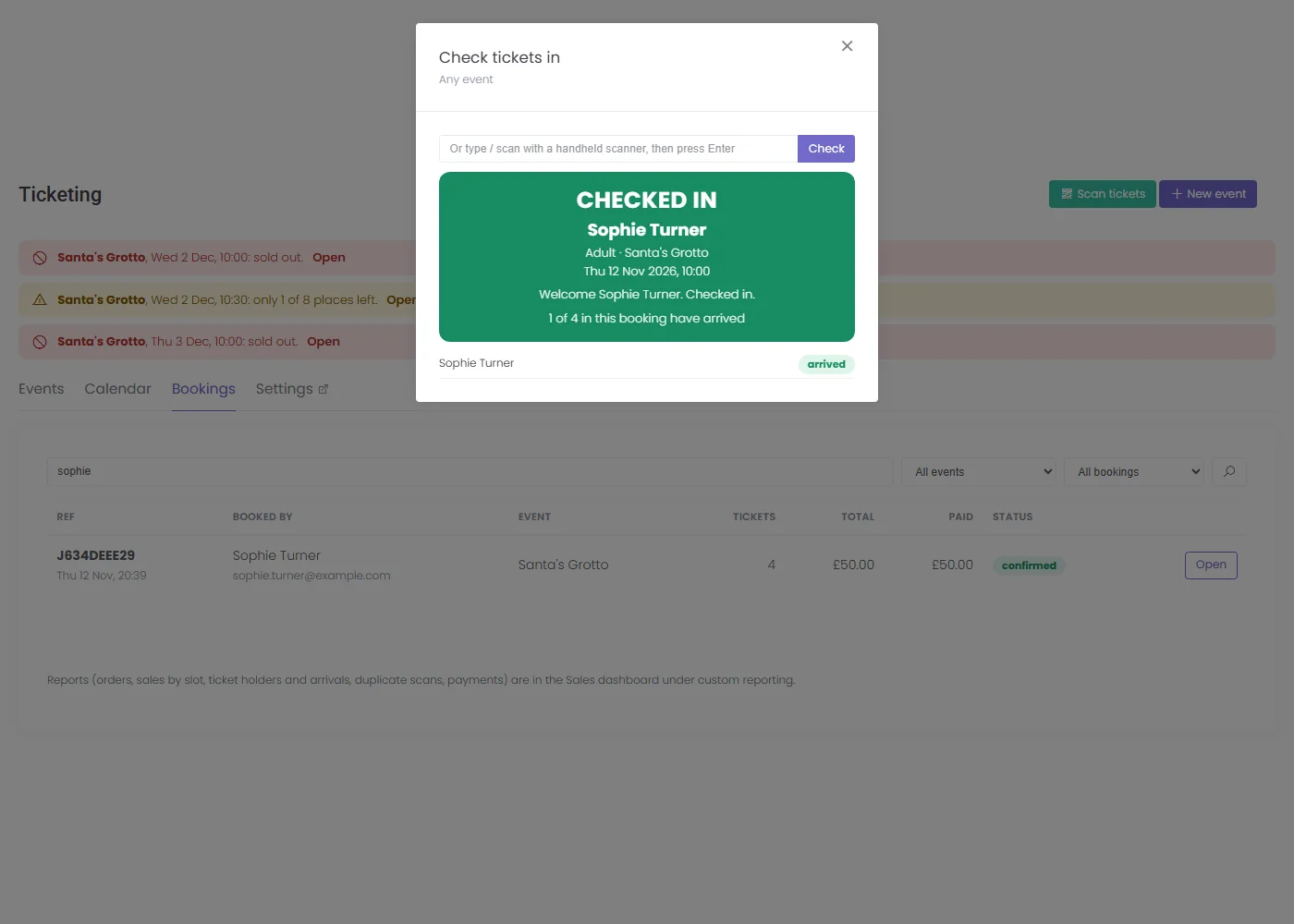

On a real phone or tablet the camera view sits above the result. It is hidden in these pictures. A ticket for a different day or time shows a warning, with the option to admit anyway.
A balance to pay on arrival
If the guest still owes money, the scan says so and opens Take payment.
- The guest scans a QR code and pays on their own phone with the venue's online payments, and the screen updates when they have paid
- Or you email them the payment link
- Or they pay staff, who record it as card terminal, cash or bank transfer
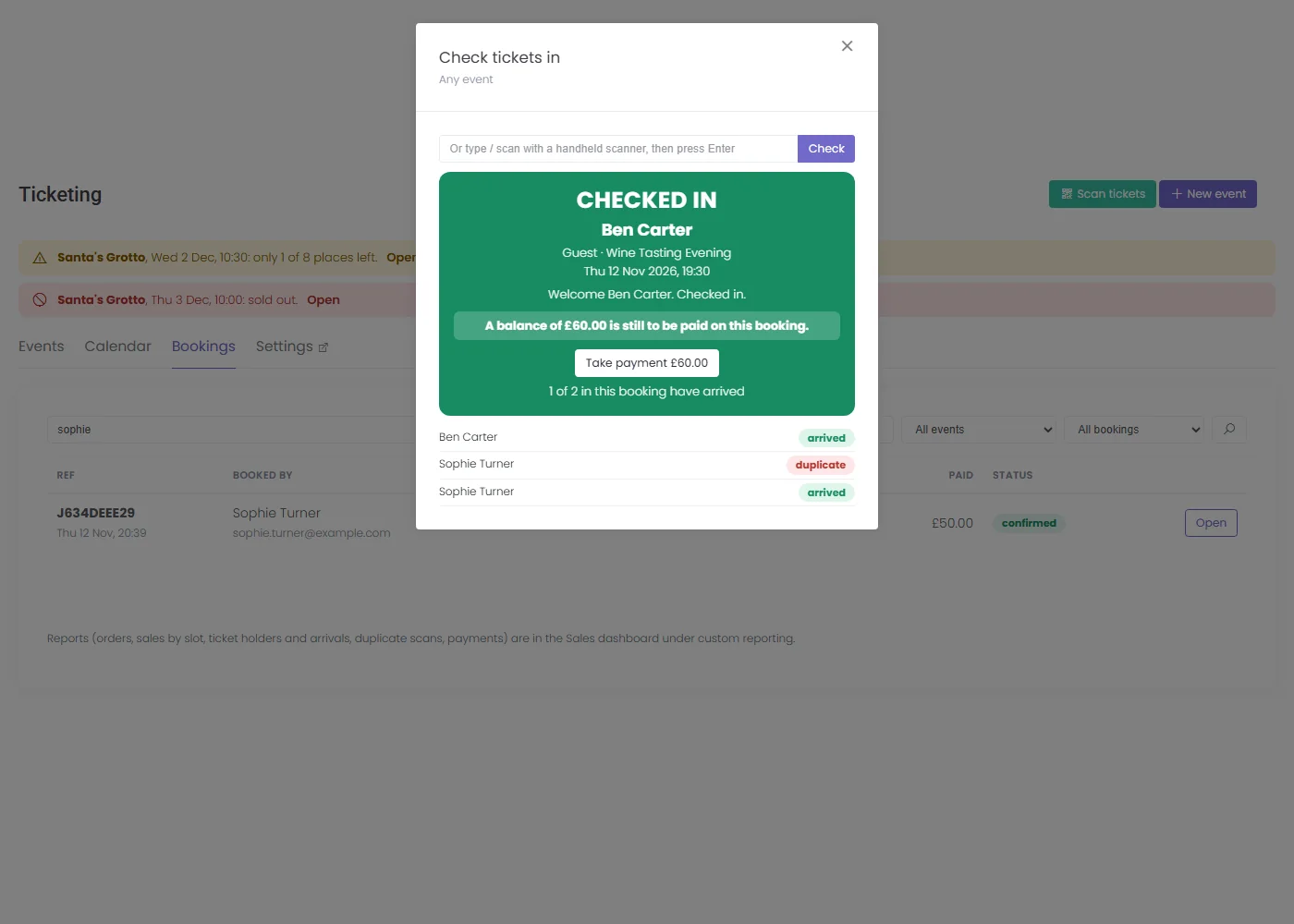

When a guest pays staff by card, staff take the payment on the card terminal and record it here.
Running It Day to Day
Events, Calendar and Guest Lists
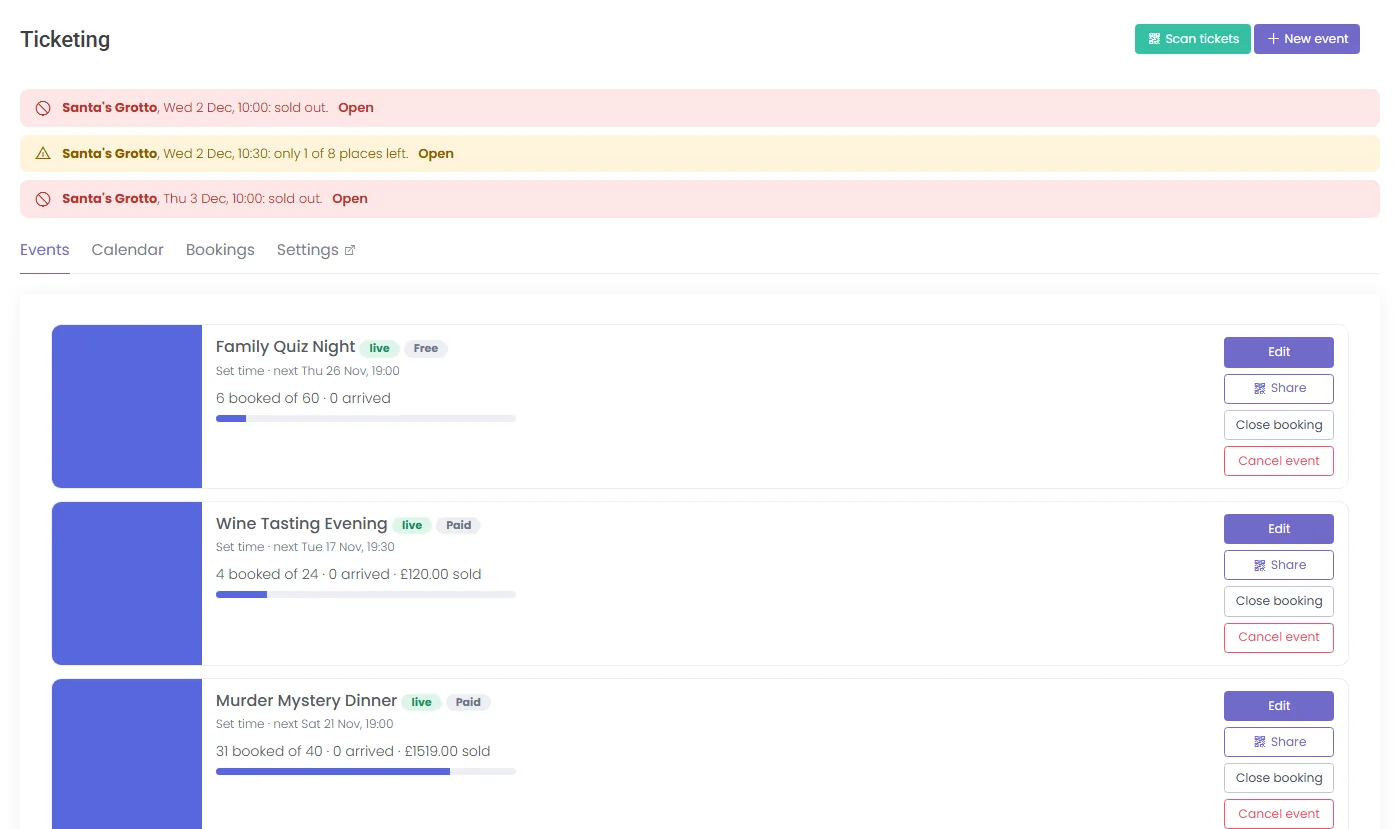
A calendar coloured by how full each slot is
Month, week and day views. Every slot shows booked and capacity, coloured for places available, nearly full, sold out or not live yet.

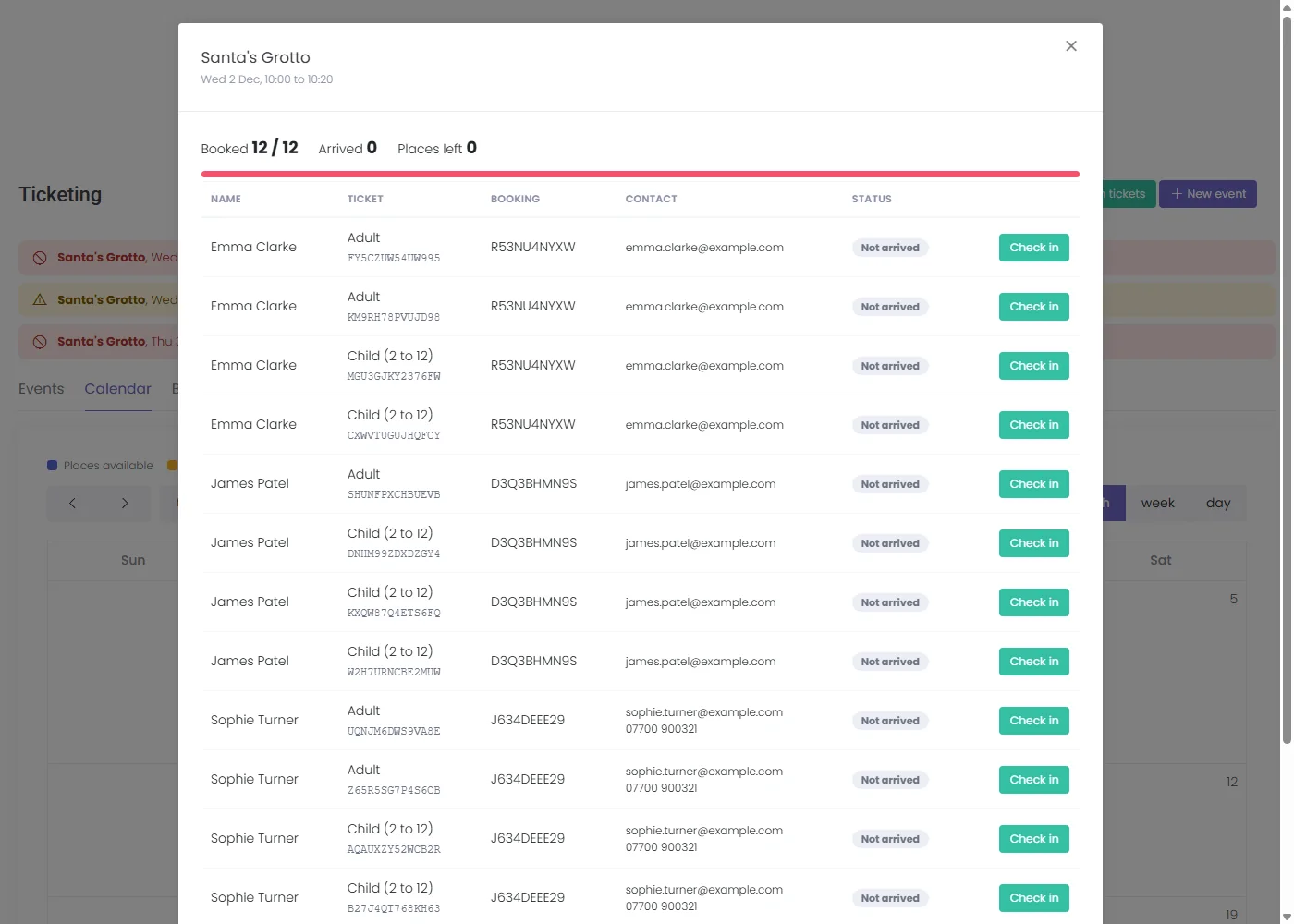
Click a slot for the guest list
See the name, ticket, booking and contact for everyone in the slot, and check people in with a button.
Bookings, desk bookings and payments
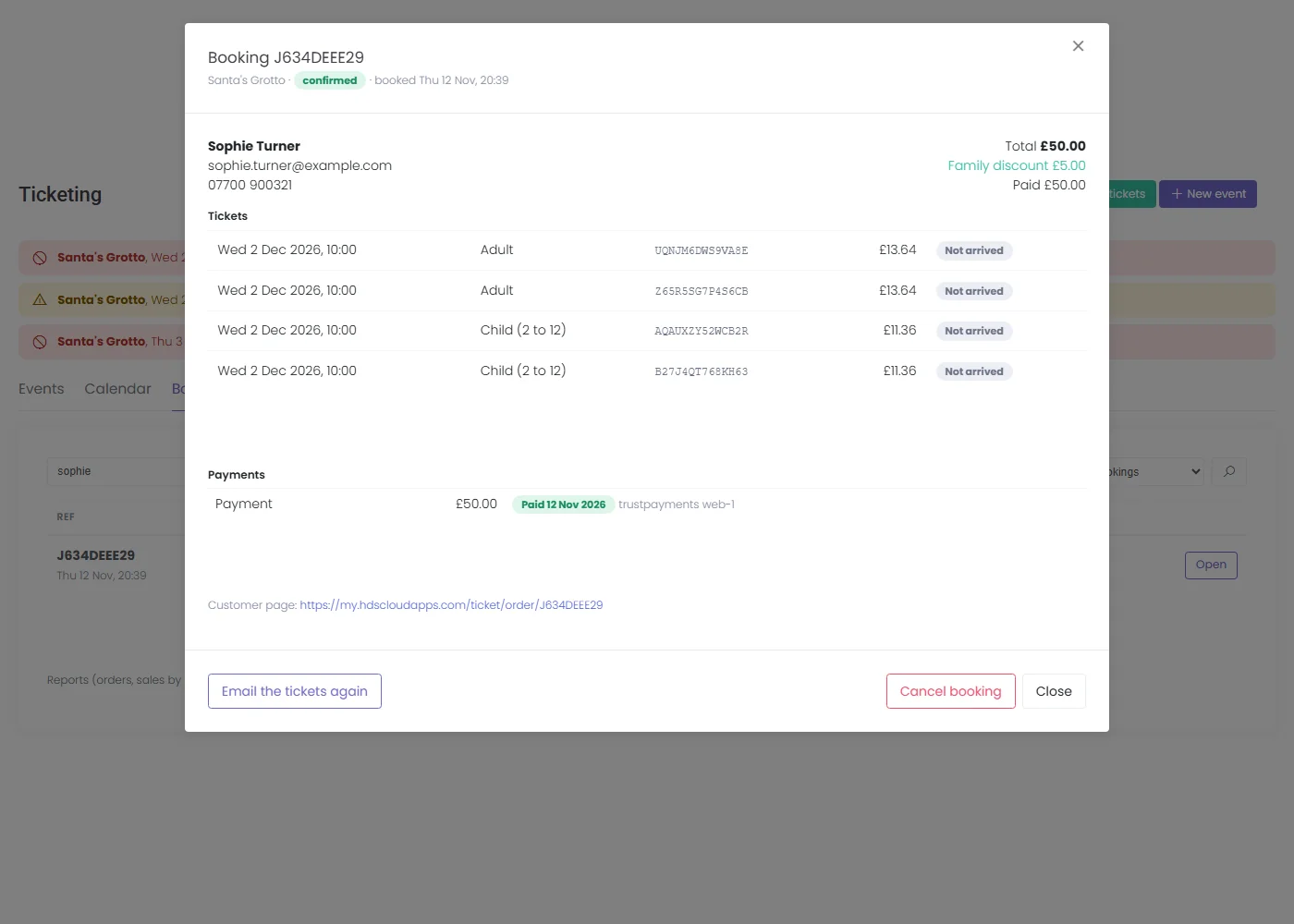
Search any booking to see its tickets, its payments and what is still due, and mark payments as received.
- Staff can take a booking by phone or for a walk-in, and mark it paid by card or cash
- A booking shows what is paid and what is still due
Reports
In the Sales dashboard's custom reports: bookings, sales and attendance by slot, ticket holders and arrivals, duplicate scans, payments due, and an events summary covering bookings, money taken, money still to collect and refunds owed. Ticket sales also appear in the General sales report.
Yearly wall planner
Ticketed events show on the yearly wall planner with the places left.
Yearly Calendar ›Digital waivers
An optional add-on. If you also use the Waivers module, each ticket holder can be asked to sign a waiver before the event.
Waivers ›Settings, then Ticketing
Company-Wide Rules, Set Once
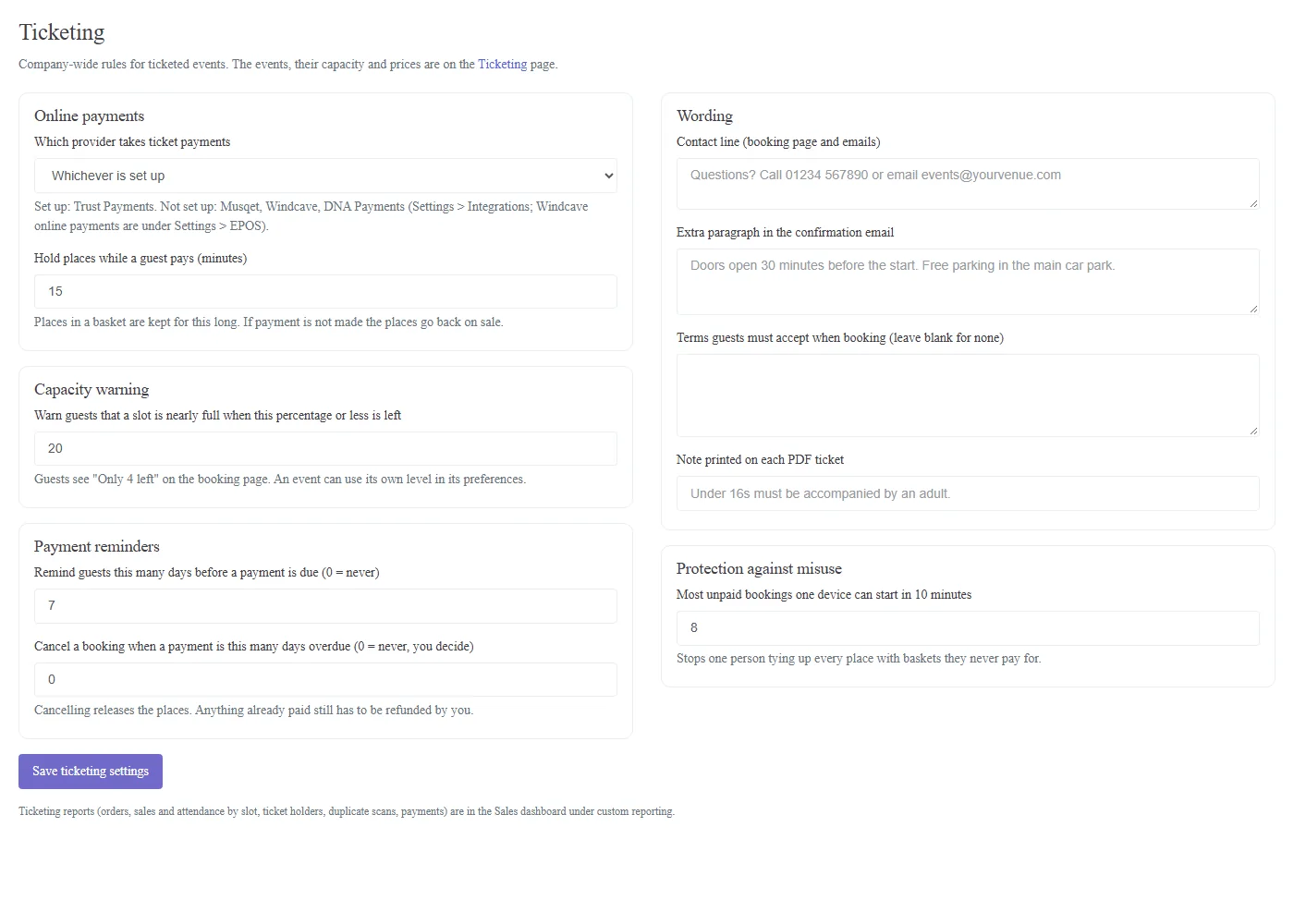
The rules that apply to every event
- Which provider takes ticket payments
- How long places are held while a guest pays
- The nearly full warning level
- How many days before a payment is due to send the reminder
- Cancelling bookings that are overdue, or never
- A contact line, an extra paragraph in the confirmation email, booking terms and a note printed on each PDF ticket
- A limit on unpaid bookings started from one device, which stops anyone tying up all the places
Who It Is For
Any Venue With Something to Book
Hotels and pubs
Seasonal events, dinners, tastings and quiz nights.
Attractions and leisure
Timed entry, tours and activity sessions.
Venues with family events
Family tickets and child pricing.
It also suits anyone who takes deposits for big events and wants the reminders and the balance handled for them.
Straight Answers
What It Does and Does Not Do
| Question | Answer |
|---|---|
| Time slots with a capacity for each | ✓ Yes |
| Deposits, instalments and reserve now, pay later | ✓ Yes, with automatic reminders |
| QR tickets, PDFs and a confirmation email | ✓ Yes |
| A ticket scanned twice is caught | ✓ Yes, ALREADY USED shows who checked it in and when |
| Online ticket payments | ✓ Yes, through Trust Payments, Musqet, Windcave or DNA Payments |
| Refunds made automatically | ✕ No, money owed back shows as refund due and you refund through your payment provider |
| Card terminal sent the amount at the door | ✕ No, staff take the card payment on the terminal and record it |
Part of the Platform
Works With the Rest of HDS Cloud Apps
Frequently Asked Questions
Ticket Sales & Reservations Questions Answered
The Basics
What is Ticket Sales and Reservations?
An optional module for selling and reserving tickets for anything a venue puts on, such as grottos, dinners, tastings, quiz nights, tours and classes. Guests book on a mobile-friendly page, get QR tickets, and the venue scans them at the door.
How do I switch it on?
Ticketing is switched on in Upgrades. Its settings are under Settings, then Ticketing.
What kinds of event can I set up?
A set time, with one date, start time and capacity, for example a dinner or a quiz night. Or time slots, where guests pick a slot and each slot has its own capacity, for example Santa's grotto, tours and tastings. A quick slot maker builds slots from a date range, first and last start, how often, length and capacity.
Can I have different ticket types and a family ticket?
Yes. Ticket types such as Adult or Child (2 to 12) each have their own price, with an optional limit per booking. An optional family ticket, for example 2 adults and 2 children for £50.00, is applied automatically in the basket.
Can I run free events?
Yes. A free event says Reserve now instead of asking for payment.
Payments and Booking
How can guests pay?
You choose for each event: in full when booking, a deposit now and the balance later, instalments with a deposit, an interim payment and the balance, or reserve now and pay later, where the amount is due on the day and can be paid from the booking page or at the door.
What if someone books close to the event?
Deposit and instalment plans only appear when there is time for them. A booking made after the balance date has to be paid in full.
Are payment reminders sent?
Yes. Guests are emailed before each payment is due, and weekly while it is overdue. Overdue bookings can optionally be cancelled after a set number of days.
Who takes the online payments?
The venue's own payment provider, the same account it already uses for mobile ordering: Trust Payments, Musqet, Windcave or DNA Payments.
How does VAT work?
You choose for each event whether prices include VAT or have VAT added on top. The guest sees the VAT breakdown before paying, and the VAT is in the reports.
Can two people book the same place?
No. Places are held while a guest pays, 15 minutes by default, so a slot cannot be sold twice. A sold-out time cannot be opened on the booking page.
What does the guest receive after booking?
A booking page with one QR ticket per person, PDF tickets, and an email with the QR codes and the PDF attached. Each QR ticket opens a page that says VALID, or ALREADY CHECKED IN once it has been used.
Tickets and the Door
How do I share an event?
When you save an event, its booking link and a QR code appear, ready to download for posters, menus and table talkers.
How do I check people in at the door?
Scan the QR ticket with the camera on a phone or tablet, or with a handheld barcode scanner. The result says VALID, or ALREADY USED with who checked it in and when. A ticket for a different day or time shows a warning, with the option to admit anyway. Door staff can scan without seeing guests' contact details.
What if a guest owes a balance at the door?
The scan says so and opens Take payment. The guest can scan a QR code and pay on their own phone, be emailed the payment link, or pay staff, who record it as card terminal, cash or bank transfer. When a guest pays by card terminal, staff take the payment on the terminal and record it.
Refunds, Reports and Waivers
Are refunds automatic?
No. Money owed back shows as refund due, and the venue refunds through its payment provider.
What can managers see?
A card for each event with its status and how many are booked out of the capacity, a calendar coloured by how full each slot is, capacity alerts, a guest list for each slot, desk bookings by phone or walk-in, and a search of every booking to see its tickets, payments and what is still due. Reports in the Sales dashboard's custom reports cover bookings, sales and attendance by slot, ticket holders and arrivals, duplicate scans, payments due and an events summary.
Can guests sign a waiver?
Yes, as an optional add-on. If the venue also uses the Waivers module, each ticket holder can be asked to sign a waiver before the event.
Ready to Sell Your Next Event?
Book a free demo and see an event set up, booked from a phone and scanned at the door, on a real system and not a slideshow. No obligation, no sales pressure.