
Spot it on the Walk Around. Fix it. Prove it.
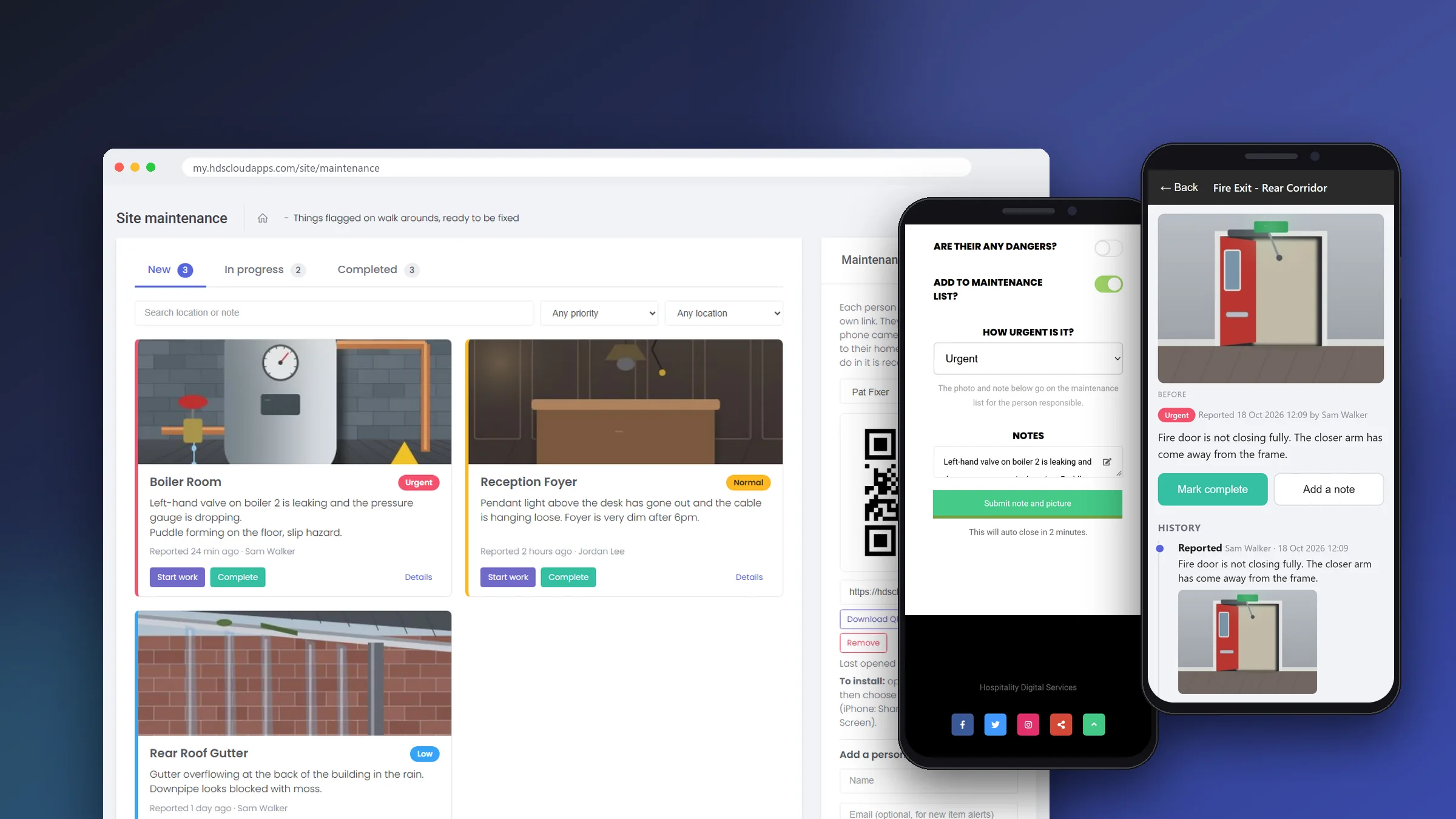
Faults noticed on a walk around get lost in notes and emails. Maintenance turns every walk around into a tracked job list, with a photo, a priority and proof that it was fixed.
Free with Site Security. Maintenance builds on the Security walk around, so Site Security is required.
The Problem It Solves
Noticed It? Now It Is a Job
Your team already walks the site. Maintenance makes sure that what they notice on that walk does not get forgotten on the way back to the office.
Both are required for every maintenance item, so nobody has to guess which "thing by the back door" was meant.
Urgent, Normal or Low, chosen at the moment of flagging. Urgent jobs are listed first.
Every step is recorded against a person's name, with when it happened and what they wrote.
A completed job can show the "before" and "after" photos side by side, with a note on what was done.
How It Works
Flag It. Fix It. Sign It Off.
Three steps, from a fault noticed on a walk around to a job closed with proof.
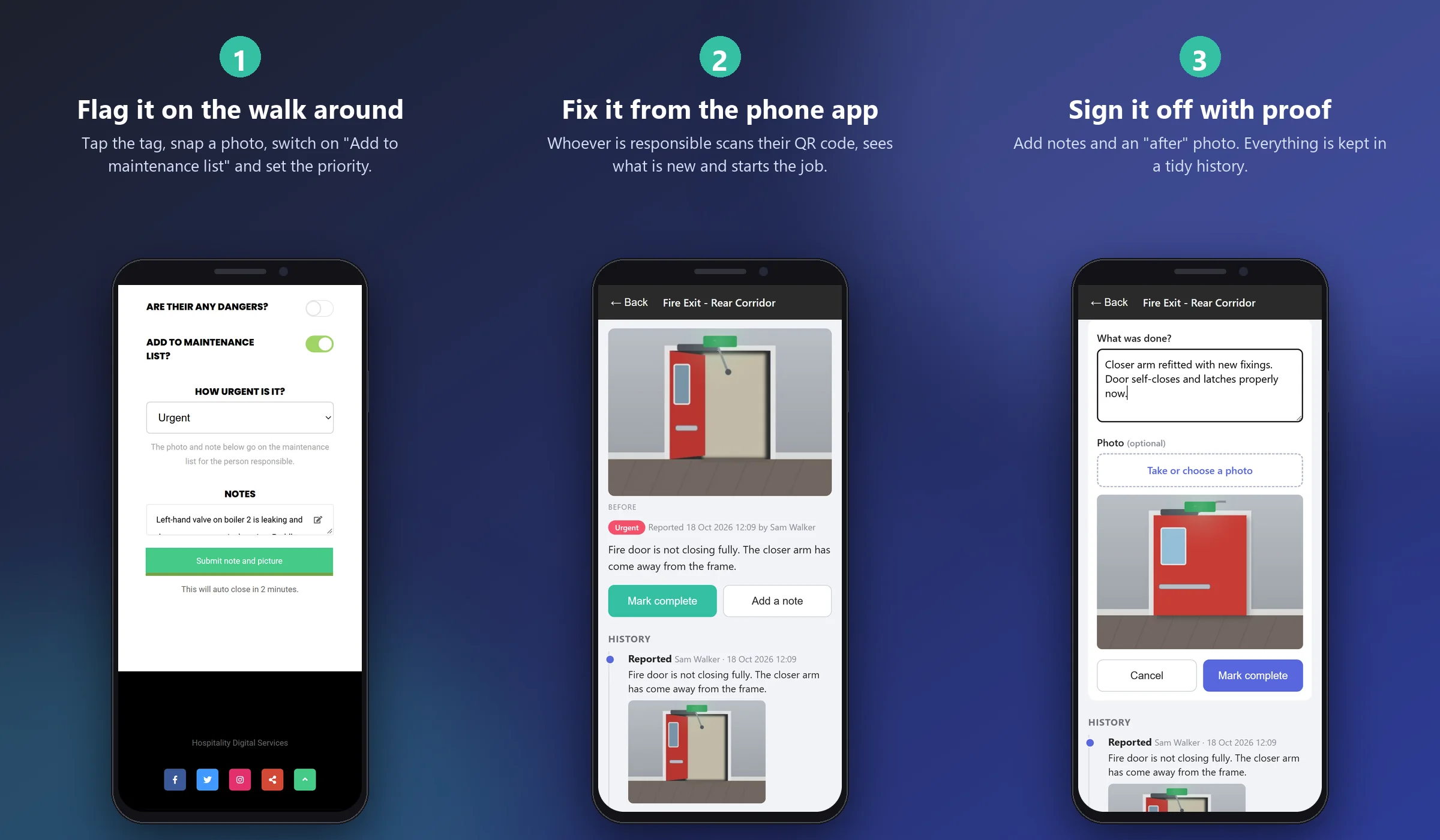
Flag it on the walk around
Tap the tag, take a photo, switch on "Add to maintenance list" and choose how urgent it is.
Fix it from the phone app
Whoever is responsible scans their own QR code, sees what is new and starts the job.
Sign it off with proof
Add a note on what was done and an "after" photo. Everything stays in a tidy history.
What You Get
From the Walk Around to a Closed Job
Flag a fault while you are standing in front of it
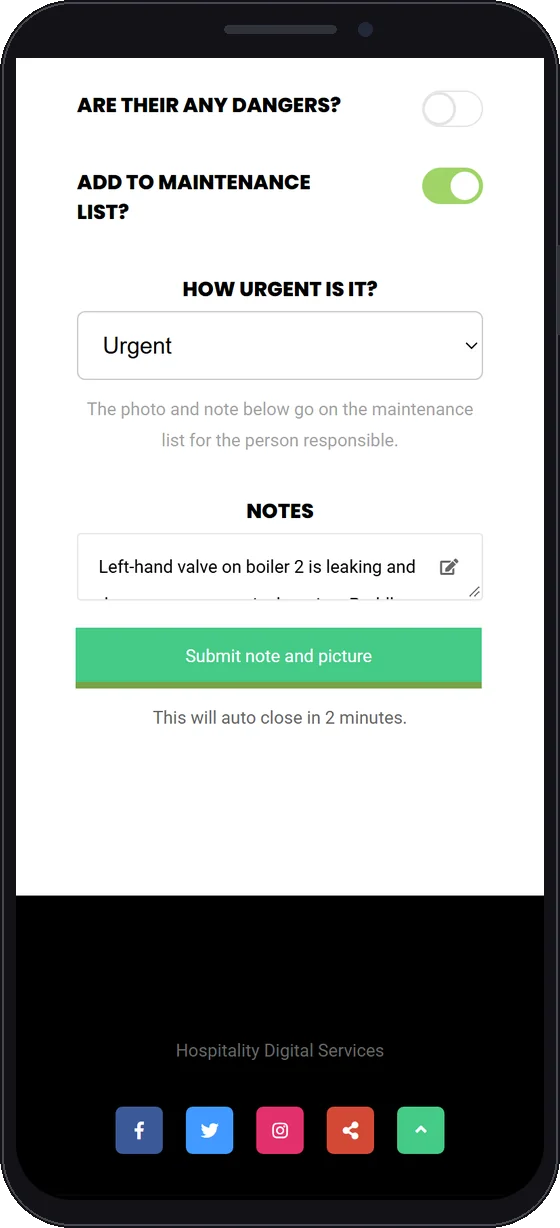
During a walk around, staff tap the tag at a location with a phone, exactly as they do now. A new switch on that screen adds what they have found to the maintenance list.
- An "Add to maintenance list" switch on the walk-around scan screen
- A photo and a note are required, plus a priority of Urgent, Normal or Low
- Separate from the "Are there any dangers?" switch, so something can need fixing without being dangerous
- The usual walk-around note is still saved as normal
Every flagged job in one place
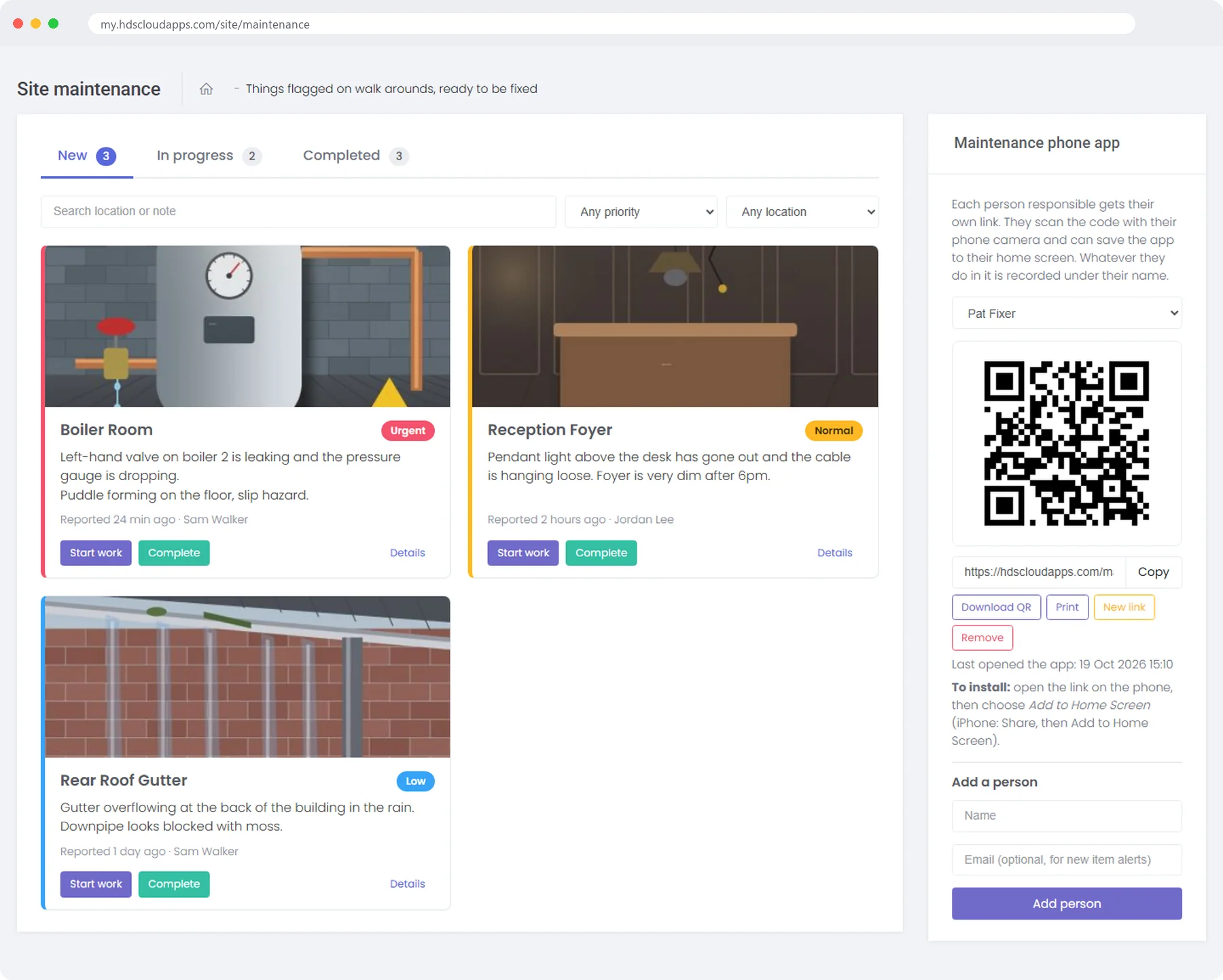
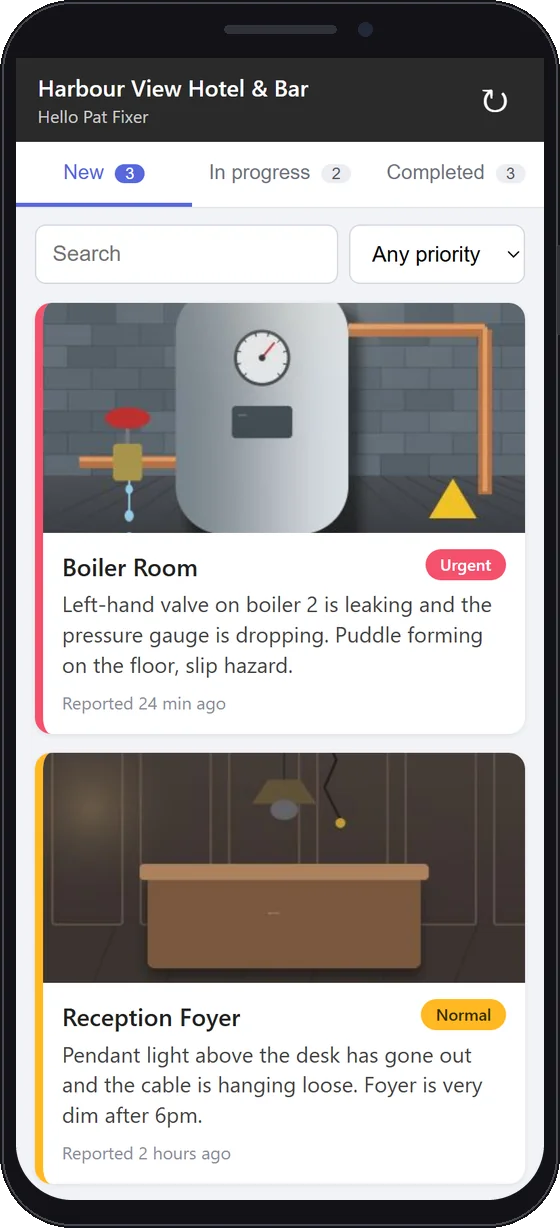
The Maintenance page, linked from the Security area of the menu, lists everything that has been flagged in three tabs, each with a count.
- New, In progress and Completed tabs
- Each job is a card with the photo, location, note, priority, who reported it and when
- Urgent jobs are listed first
- A search box, plus filters for priority and location
- Start a job, add notes, complete it, or reopen it later. Priority can be changed at any time
A phone app for the person responsible
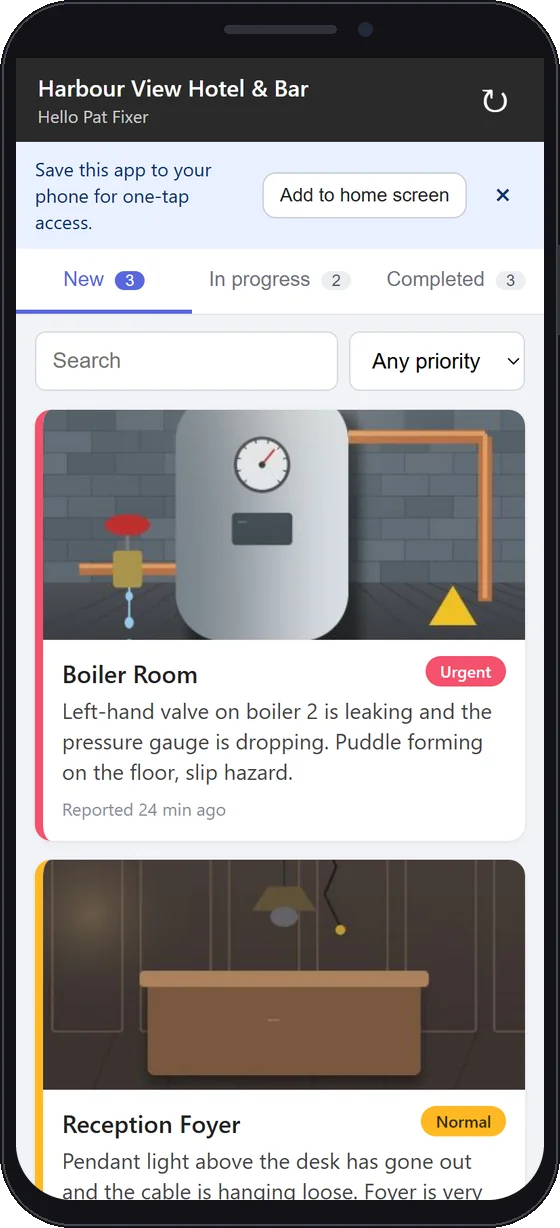
Each person is added by name, with an optional email, and gets their own private link and QR code on the Maintenance page. They scan it with their phone camera and the app opens. There is no login.
- The same three tabs, with large buttons that are easy to use on site
- Take photos from the camera or choose them from the gallery
- Save it to the home screen: Android offers a prompt, and on iPhone use Share, then Add to Home Screen
- The last list it loaded still shows with no signal, but changes need a connection
A private link for each person
Links belong to people, so access is easy to manage as your team changes.
- Download or print each person's QR code
- Replace a person's link with a new one, and the old one stops working immediately
- Remove a person at any time. Their name stays on the history of what they did
- Everything a person does in the app is recorded under their own name

Sign it off with proof
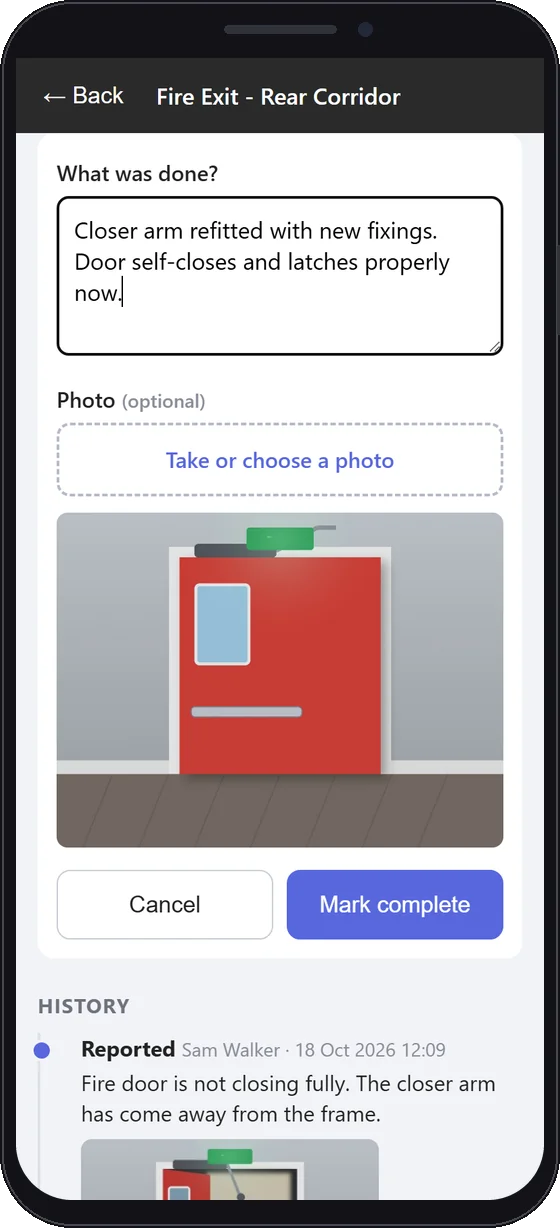
When a job is done, the person completes it with a note saying what was done and, if they wish, an "after" photo. Once completed, the job shows the before and after side by side.
- A note on what was done, and an optional "after" photo
- Completed jobs show before and after next to each other
- A completed job can be reopened if the problem comes back

A history you can rely on
Every step on a job is recorded: who did it, when, what they wrote and which photos they added. When someone asks "was that ever fixed?", the answer is on the page.
- Reported, started, noted, completed and reopened steps are all kept
- Each entry shows the person, the time, their note and any photos

The screens on this page are real captures from a demonstration site that uses fictional data, including a made-up venue called Harbour View Hotel & Bar. The job photos are illustrations, not real customer photos.
Works With Security
Pair It With Site Security
Maintenance builds on the Security walk around and needs Site Security. Staff tap the same tags they do today, and the new switch turns something they notice into a tracked job. It is free with Site Security.
Security finds it. Maintenance gets it fixed.
Site Security proves the walk around happened, with a timestamp and a photo at each checkpoint. Maintenance takes anything that needs fixing from that walk around and follows it through to a closed job. Maintenance does not replace Site Security. It extends it, and it cannot be used without it.
Built to Be Trusted
Simple for the Team, Clear for You
A private link per person
Each person has their own link and QR code. Nobody shares a login.
Replace a link at any time
Issue a new link and the old one stops working immediately.
Every action logged under a name
Who did what, and when, stays on the job's history.
Email alerts when something is flagged
An email goes to your company's security email addresses and to each person who has an email, with the location, priority, note and photo. Each person's email includes their own link to the app.
Who It Is For
Any Site With a Regular Walk Around
Hotels
Faults found in corridors, plant rooms and car parks go on one list instead of in several inboxes.
View Hotel EPOS ›Pubs and restaurants
Anything spotted on the closing walk around can be flagged, fixed and signed off.
View Restaurant EPOS ›Schools and leisure sites
Buildings and grounds with a regular walk around can track what needs doing and show that it was done.
See all sectors ›Getting Started
Your First Flagged Job on the Next Walk Around
Book a Demo
See a fault flagged on a walk around, fixed from the phone app and signed off with proof.
Add Your People
Add each person by name, with an optional email, and hand them their QR code.
Start Flagging
On the next walk around, staff switch on "Add to maintenance list" at anything that needs fixing.
Frequently Asked Questions
Maintenance Questions Answered
Getting Started
What is the Maintenance module?
A tracked job list for faults noticed on a walk around. Staff flag a fault during a Security walk around with a photo, a note and a priority, the person responsible fixes it from a phone app, and the job is signed off with a note and an optional after photo.
Is Maintenance an extra cost?
No. Maintenance is free if you have Site Security.
Can I have Maintenance without Site Security?
No. Maintenance is built on the Security walk around, so Site Security is required. You cannot have Maintenance on its own.
Does it replace the Security module?
No. Maintenance extends the Security walk around. Staff still tap the tag at each location as they do now, and a new switch on that screen adds anything that needs fixing to the maintenance list. The walk-around note is still saved as normal.
How does a fault get onto the list?
During a walk around, after tapping the tag at a location, staff switch on Add to maintenance list, take a photo, write a note and choose a priority of Urgent, Normal or Low. A photo and a note are required for a maintenance item.
Is flagging a job the same as flagging a danger?
No. It is a separate switch from the Are there any dangers? switch, so something can need fixing without being dangerous.
The Phone App
Does the person fixing things need a login?
No. Each person is added by name, with an optional email, and gets their own private link and QR code. They scan it with their phone camera and the app opens with no login.
Can the app be saved to a phone?
Yes. Android offers a prompt to add it to the home screen. On iPhone, open the link, tap Share, then Add to Home Screen.
What happens if there is no signal?
The last list the app loaded still shows when there is no signal, but any changes need a connection.
Records, Alerts and Control
Can I see who fixed something and when?
Yes. Every step is recorded in the job history, including who did it, when, what they wrote and any photos. Everything a person does in the app is recorded under their own name.
Who gets an email when something is flagged?
An email goes to the company's security email addresses and to each person who has an email address, with the location, priority, note and photo. Each person's email includes their own link to the app.
What if a link is lost or someone leaves?
You can replace a person's link with a new one, and the old one stops working immediately. You can also remove a person. Their name stays on the history of what they did.
Can a completed job be reopened, or its priority changed?
Yes to both. A completed job can be reopened, and the priority of a job can be changed later.
Ready to Spot It, Fix It and Prove It?
Book a free demo and see a fault flagged on a walk around, fixed from the phone app and signed off with before and after photos. No obligation, no sales pressure.